

Blinkit's dark-store network has grown fast enough that "sell on Blinkit" has become a real question for D2C brands and FMCG sellers — but the onboarding process looks nothing like registering on Amazon or Flipkart. There's no instant self-serve signup. Approval runs through a Category Manager, and getting your GST right across multiple warehouse locations is a genuinely different compliance question than a single-state Amazon FBA setup.
Who Can Sell on Blinkit
Blinkit works with three broad categories of suppliers:
- D2C brands who want their inventory stocked in Blinkit's dark stores
- Wholesalers/distributors capable of supplying high-demand goods at scale across Blinkit's network
- Local retailers (kirana stores, pharmacies, bakeries) in Blinkit's hyperlocal partner programme — a distinct, smaller-scale track from brand onboarding
This guide covers brand/vendor onboarding — the route for anyone stocking their own product into Blinkit's warehouses.
Documents You'll Need
- GST registration certificate
- PAN card
- Bank account details (must match your GST-registered business name)
- FSSAI license, if you sell food or grocery items
- Brand authorization letter, if you're not the registered brand owner
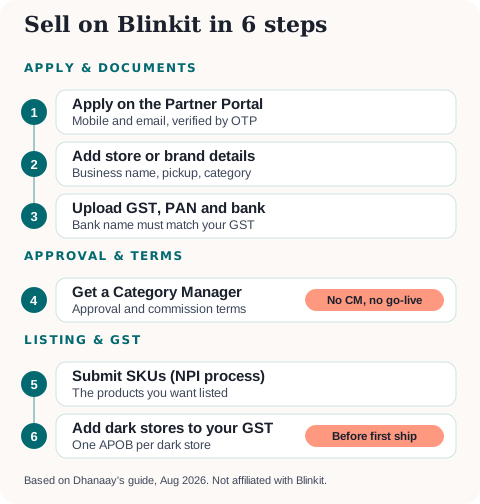
Onboarding: Step by Step
- Apply on the Blinkit Partner Portal with your mobile number and email; verify via OTP.
- Fill in your store/brand details — business name, pickup address, and product category.
- Upload your GST, PAN, and bank documents for verification.
- Get assigned a Category Manager (CM) — without CM approval, you cannot go live. The CM also finalises your commercial terms, including commission percentage.
- Submit SKUs through the NPI (New Product Introduction) process for the products you want listed.
- Add APOBs for each warehouse Blinkit will stock your product from, updating your GST registration accordingly (see below).
The Partner Portal-to-approval cycle typically takes 7–14 business days once documents are in order, but a new brand going through full category approval should budget 30–60 working days end to end.
Commission and Fees
Blinkit's take rate isn't a single flat number — it's negotiated by category with your Category Manager, and typically falls in the 8–22% of MRP range depending on product type (fresh/packaged goods tend lower, premium/niche categories higher). On top of commission, expect:
- A small inwarding fee per unit when stock enters the warehouse
- 18% GST on all platform fees (recoverable as ITC if you're GST-registered)
- TCS/TDS deductions, similar in principle to Amazon/Flipkart, though the exact structure depends on your commercial agreement
Once ad load and storage fees are factored in, brands commonly model an all-in take rate in the 18–30% range when planning margins — closer to Amazon/Flipkart territory than Meesho's zero-commission positioning.
The GST Detail Every Quick-Commerce Vendor Misses
Unlike an Amazon FBA seller who typically registers GST in one or two states, Blinkit fulfils orders from dark stores spread across many cities — and under GST law, every warehouse or dark store you supply into is a separate Additional Place of Business (APOB) that must be added to your GSTIN in that state. Skipping this isn't a minor paperwork gap — it affects your invoicing accuracy and ITC eligibility at each location. This is different enough from standard marketplace registration that it deserves its own explanation — see our quick-commerce GST and dark-store registration guide for the full mechanics, current requirements, and what regulatory changes are underway to simplify it.
Modelling Your Margins Before You Commit Stock
Blinkit's negotiated, category-by-category commission means you won't know your exact take rate until your Category Manager confirms it — but you can sanity-check the range against Amazon and Flipkart's published rate cards using the Marketplace Profit Calculator to see how an 8–22% commission plus 18% GST on fees compares to your existing channels before you commit inventory to a new dark-store relationship. Use the GST Calculator to quickly check the GST math on your invoiced fees, and the GST Due Dates Calendar to keep your filing schedule aligned once you're supplying across multiple APOB-registered states.
Getting Started
If you don't have a GSTIN yet, get that in place first — see our GST registration guide. Once you're registered and approved by a Blinkit Category Manager, budget time for the APOB updates before your first shipment goes out, not after.
More platform guides: How to Sell on Zepto · How to Sell on Swiggy Instamart · How to Sell on BigBasket · GST Registration for Sellers · Quick-Commerce GST & Dark-Store Registration
Ready to start or scale your online store?
Read our complete guide covering platform selection, GST registration, logistics, and payment gateways.
Newsletter
GST updates & guides, free.
Join sellers who get our weekly digest on GST compliance, e-commerce rules, and finance tips — no spam.
No spam. Unsubscribe anytime.